
This works for everything, because art has physics too.
So you want to make a fun pattern for reasons. And you have a thing you want to incorporate.
This also works in any program that lets you use layer and resize tools as long as you're patient. I'm using photoshop so I have very handy quick align tools to make sure my patterns really do line up on all four edges correctly.
Anyway. Here's how you do it, it's so easy.
First: You need a square canvas. This set of instructions only works with squares because geometry.
Then you grab your thing, your main pattern highlight:
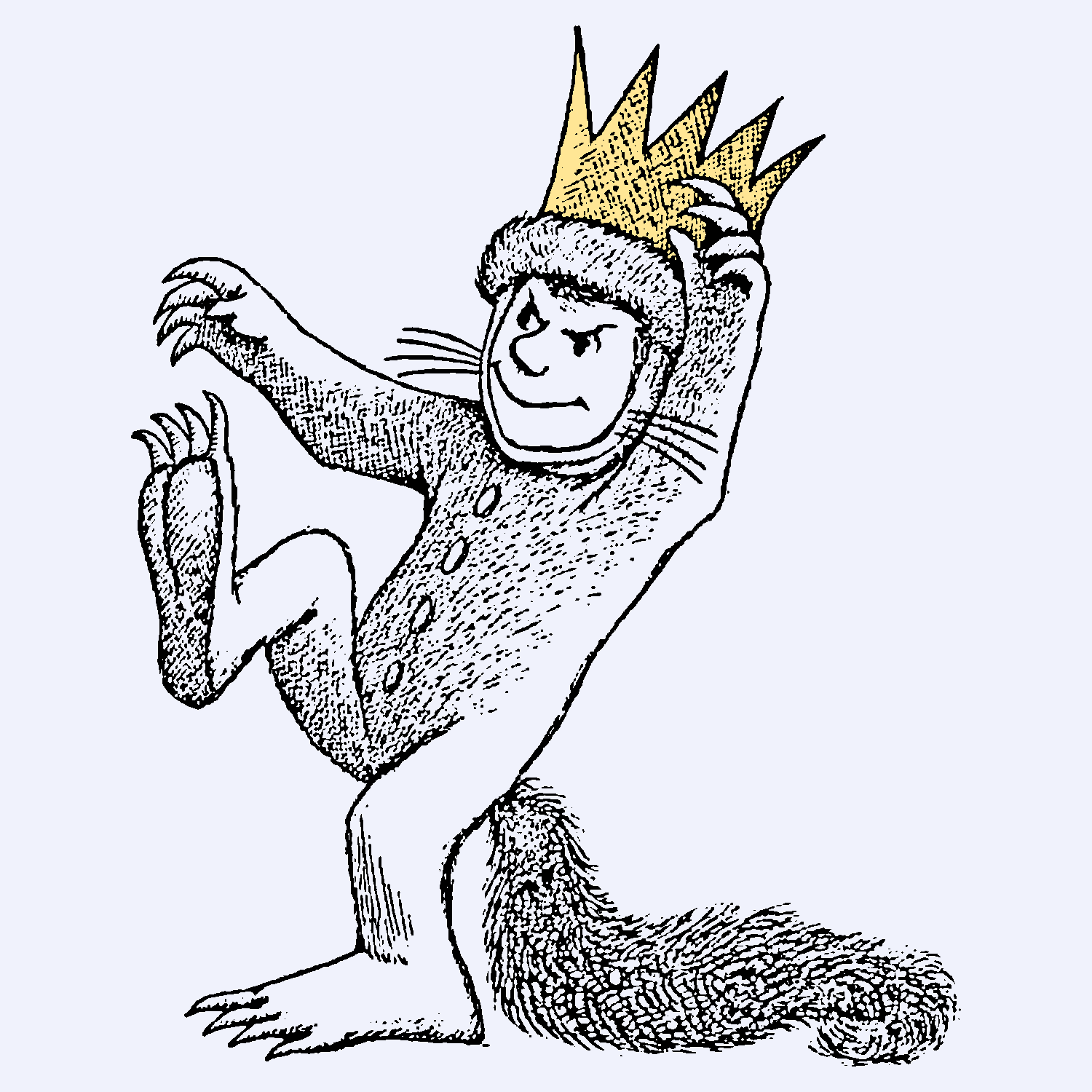
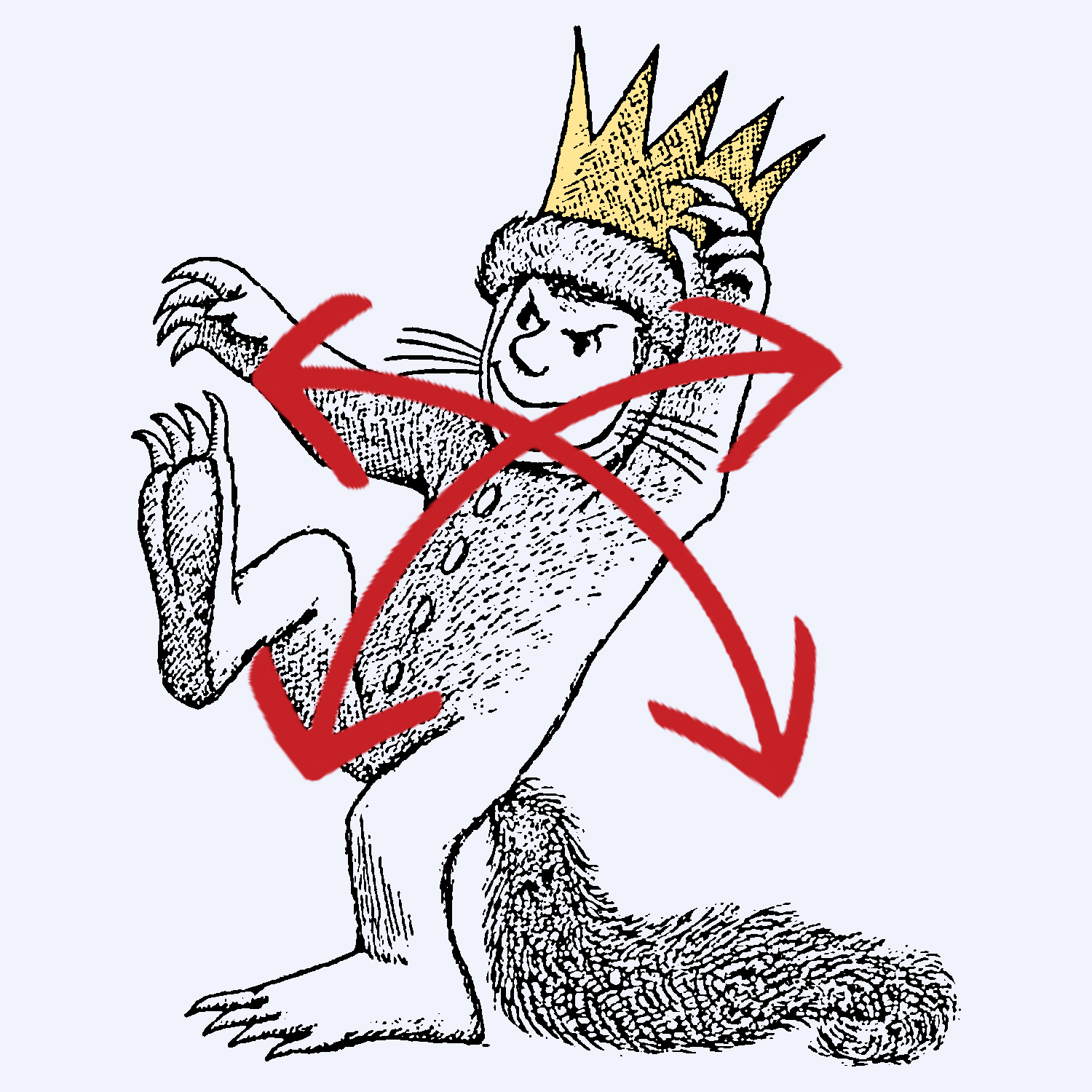
And then you chop it down the middle both horizontally and vertically into four sections and shuffle them to opposite corners.
Instead of actually cutting your image like you would in real life, digitally we're actually just going to copy the layer four times and drag most of our image off frame to keep only the opposite corner that aligns to your center point.
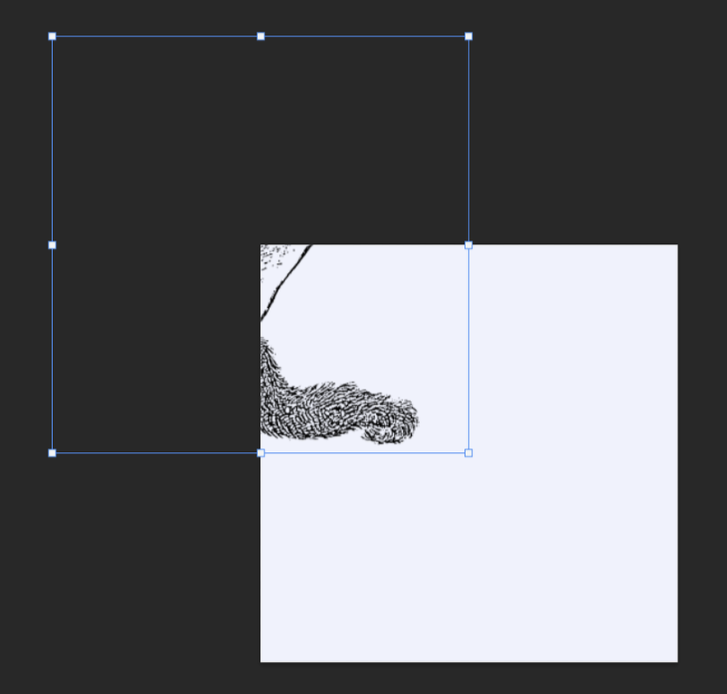
In photoshop it looks like this because I have handy snap to center points that lets me do this quickly. Canva also has a center snap feature if you are app based on editing. If you're using a mobile app that doesn't have center snap - good luck and godspeed on that alignment.
What we're doing here is creating a boundary around the square that will always connect to it's corresponding lines from the original image.
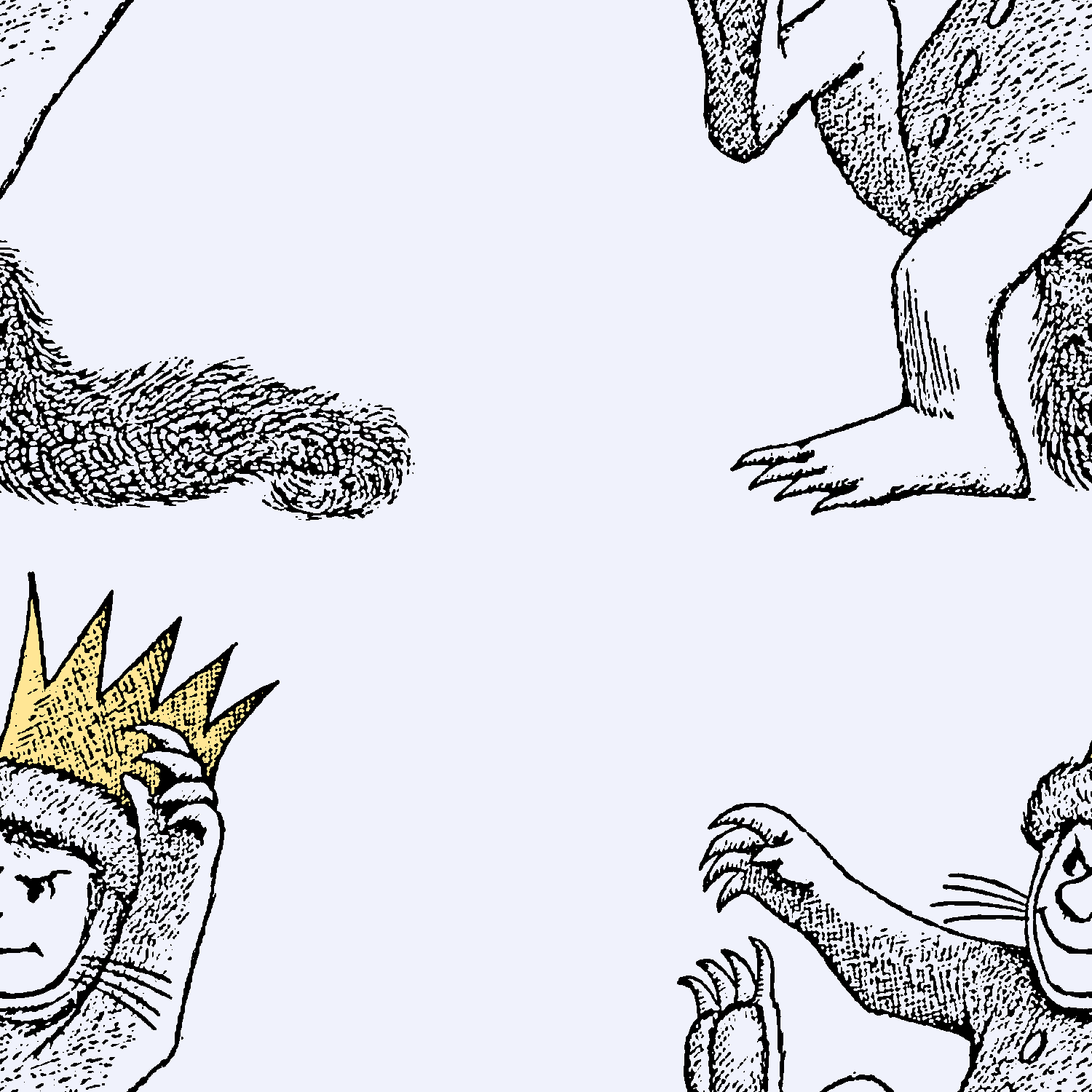
And now that we built our frame we found all this beautiful negative space that we can fill with things!
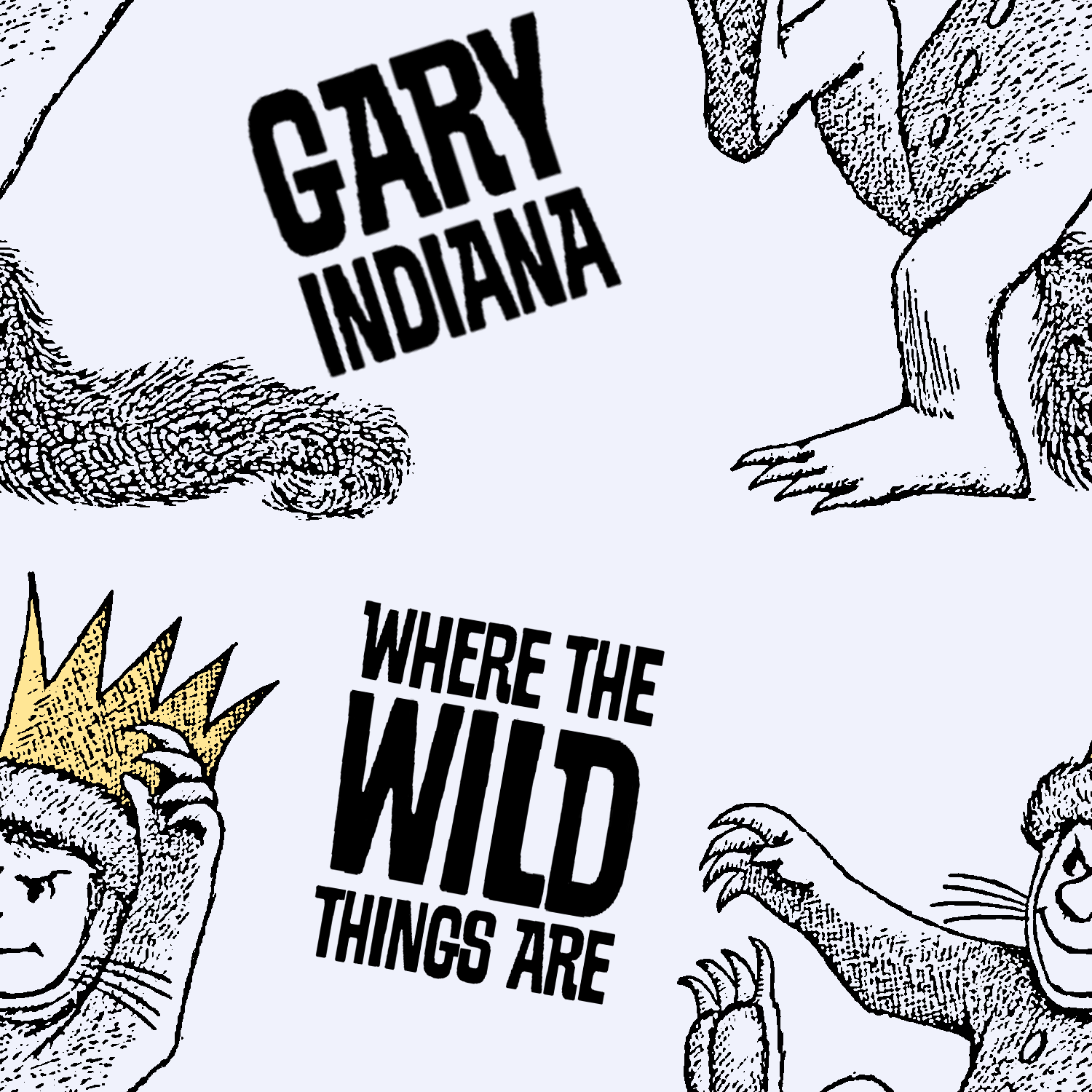
Some splash text and a thematic reference will do for this tutorial.
And that's your starting square. If you were to upload this to a fabric or wallpaper printer this square will be able to be repeated forever at any scale that your original square allows.
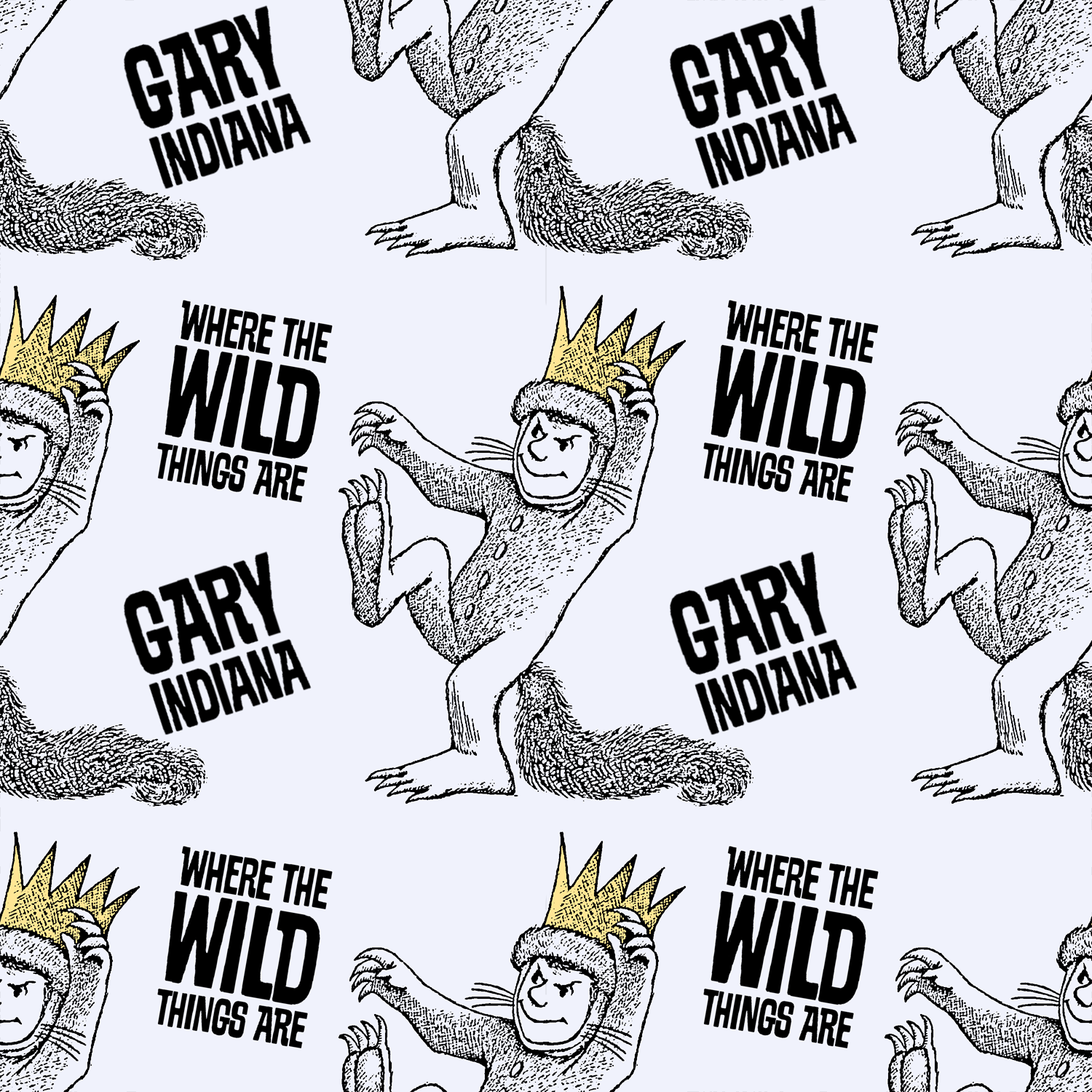
To make the full visible pattern you simply line up the squares into a grid and the original guy that you chopped up is right there, happy and centered!
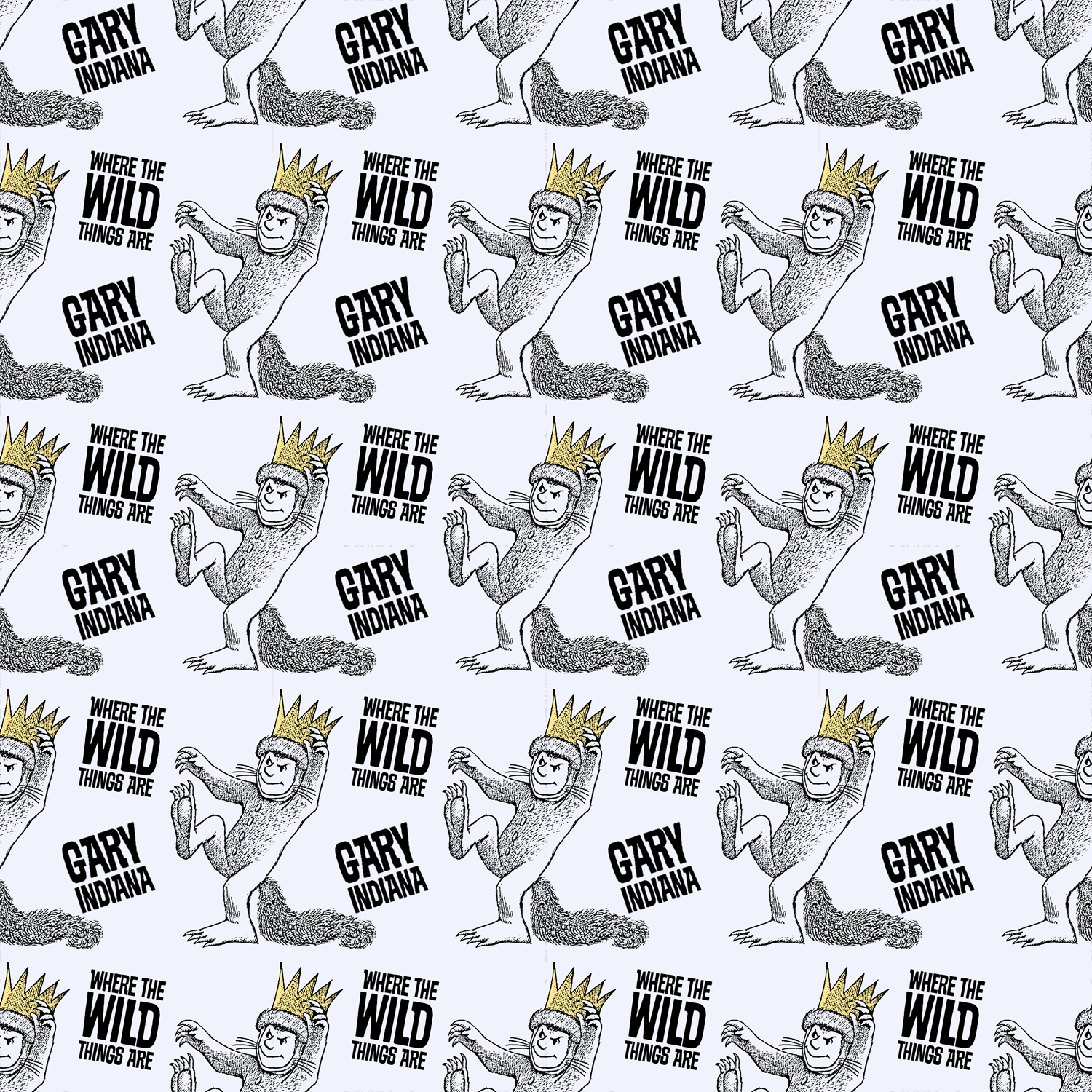
And then you do it again with another layer.
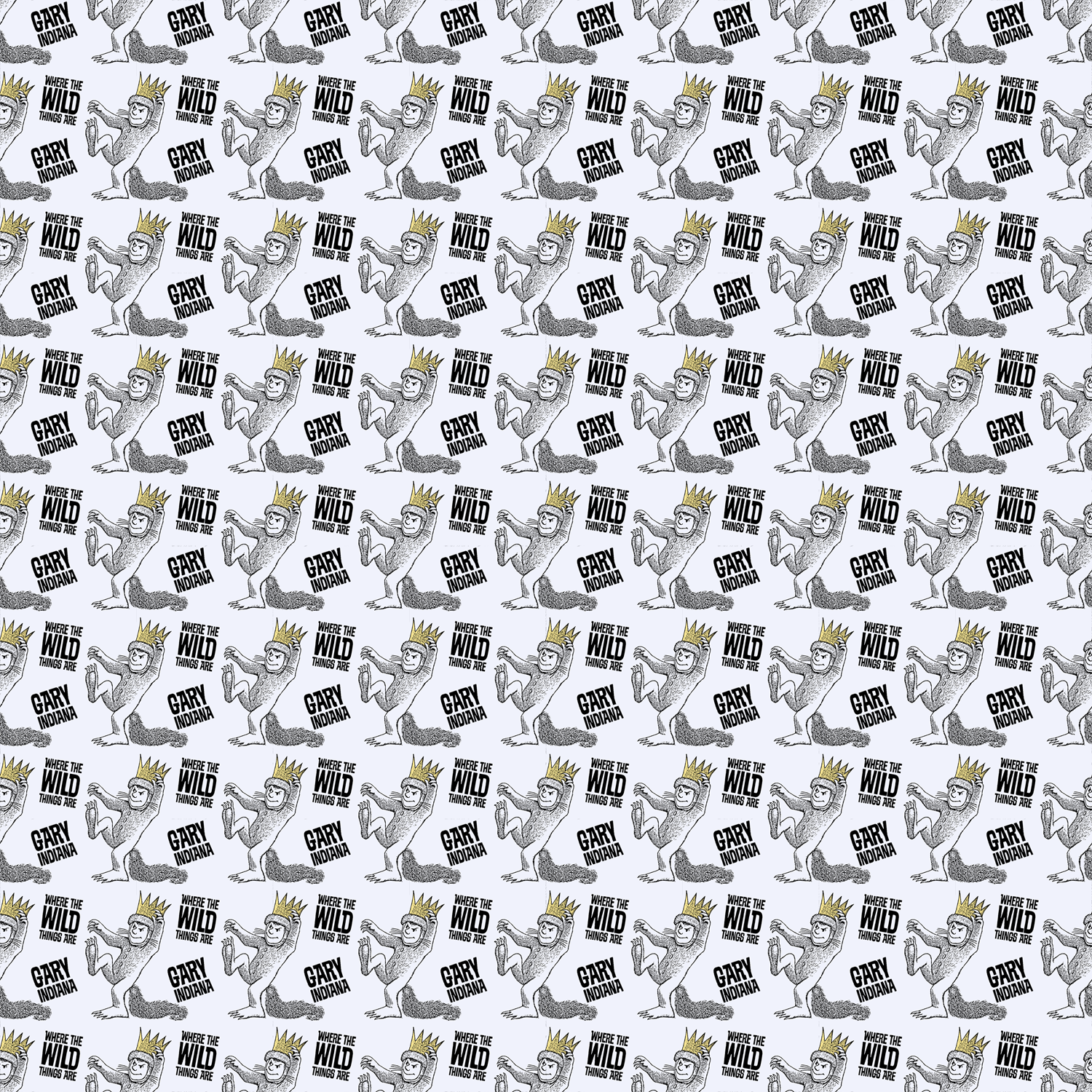
And it keeps going because at this point it hits that satisfying level where we all want to drop the classic line - "do it again".
It also lets you re-check your alignment on the original layers. If even a pixel is off on lining it back up, by the time you get to the third repetition you will start to see the lines of where it started so you can unweave it all and fix it. Usually one pixel at a time. This is why the snap to center tool is super handy.
Boom you can make seamless patterns now. Out of anything. It's actually kinda fun and it gives me other ideas which is what art is all about, really.
